Mo. ° / °
Ariz. ° / °
Calif. ° / °
  • Faculty Activity Report / Annual Activity Report

    In Watermark Faculty Success (formerly Digital Measures), faculty members use the Rapid Reports feature to quickly preview how entered data appears in official document formats like the Annual Activity Report (AAR) or Faculty Activity Report (FAR).

    • Access Faculty Success from myapps portal.

    1. Rapid Report & Annual Activity Report/Faculty Activity Report

    The Rapid Reports tool is designed for “on-the-fly” reporting while you are managing your activity data. 

    • Step 1: Locate the Rapid Reports button at the top right-hand corner of any screen within the Activities section.
    • Step 2: Click the button to open a smaller pop-up window.
    • Step 3: In the Report drop-down menu, select Annual Faculty Activity Report (the name may vary slightly by institution, such as “Annual Faculty Report” or “FAAR”).
    • Step 4: Select the Date Range (usually the current or previous calendar year).
    • Step 5: Choose your preferred File Format (choose the PDF format for uploads to Paylocity).
    • Step 6: Click Run Report. The file will automatically download to your browser or Downloads folder.

    2. What the Report Outputs

    The AAR / FAR  is a comprehensive document that pulls data from your various “Activities” screens to summarize your professional contributions for the year. The standard output includes: 

    • Teaching & Advising: A list of courses taught, student credit hours, and advising roles.
    • Administrative Assignments: A list of administrative roles you have.
    • Scholarship & Research: All publications (peer-reviewed articles, books), presentations, and active grants.
    • Service: Participation in departmental, college, and university committees, as well as professional or community service.
    • Narrative Statements: Any personal annual statements or “Self-Evaluation” narratives you entered regarding your teaching philosophy or goals for the year.
    • Professional Credentials: Updated licenses, certifications, and professional development activities.

    How to generate reports in Faculty Success


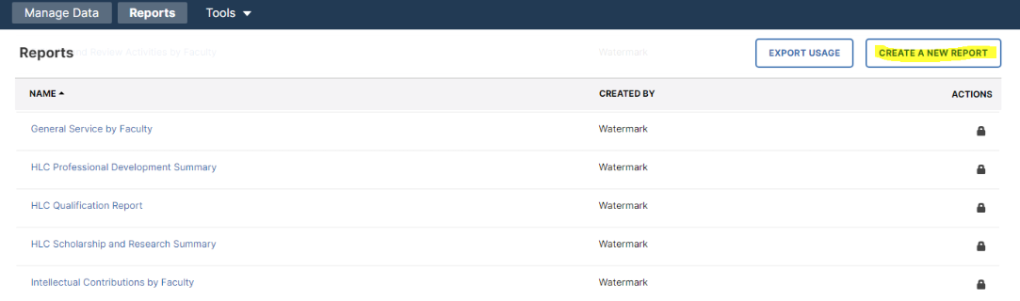
    You can easily generate your Faculty Activity Report (FAR/AAR) through Faculty Success. Or use the preset report templates already available, if you need something specific, just click Create a New Report to start from scratch.

    For existing reports, you can select the following:

    1. Date Range – select the time period you want to extract faculty information.
    2. Whom to include – select faculty by ATSRI membership, college, department or individual faculty member(s)
    3. File format – select the output format of Microsoft Word, PDF or Web Page (.HTML)
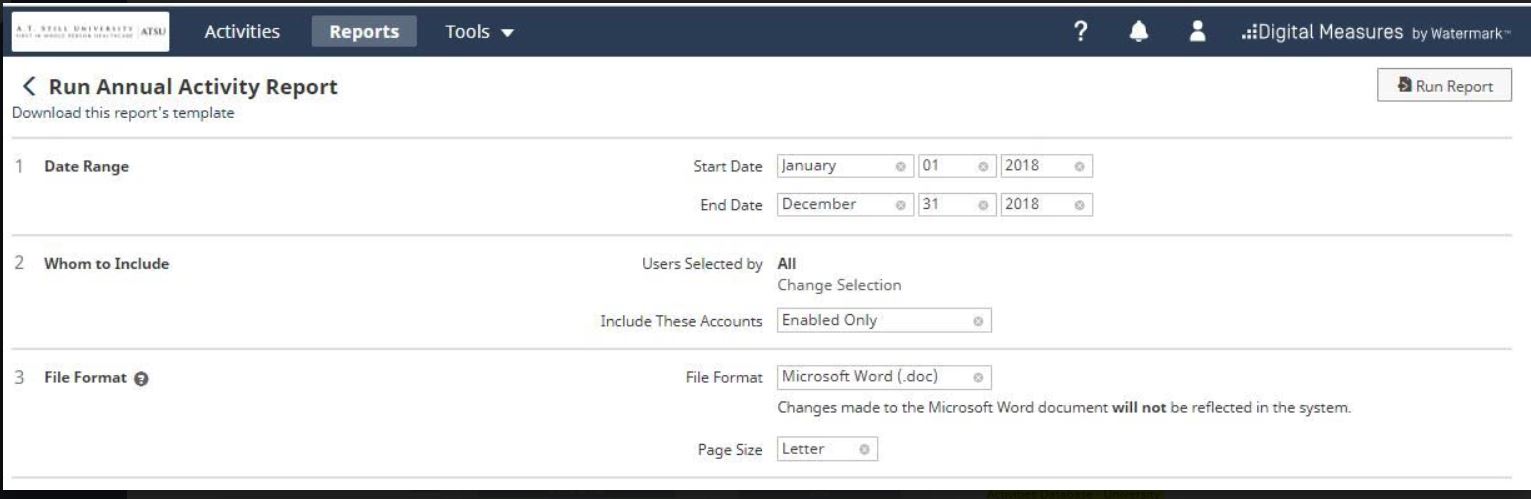
    After making your selections, run the report and the report will download. Select the download file to view the report.

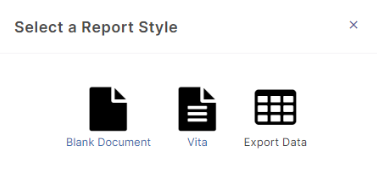
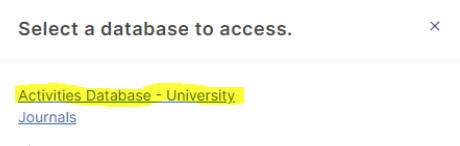
    To create custom reports select the Create a New Report  

    You can select:

    Blank document – allows you to select activities and text to format
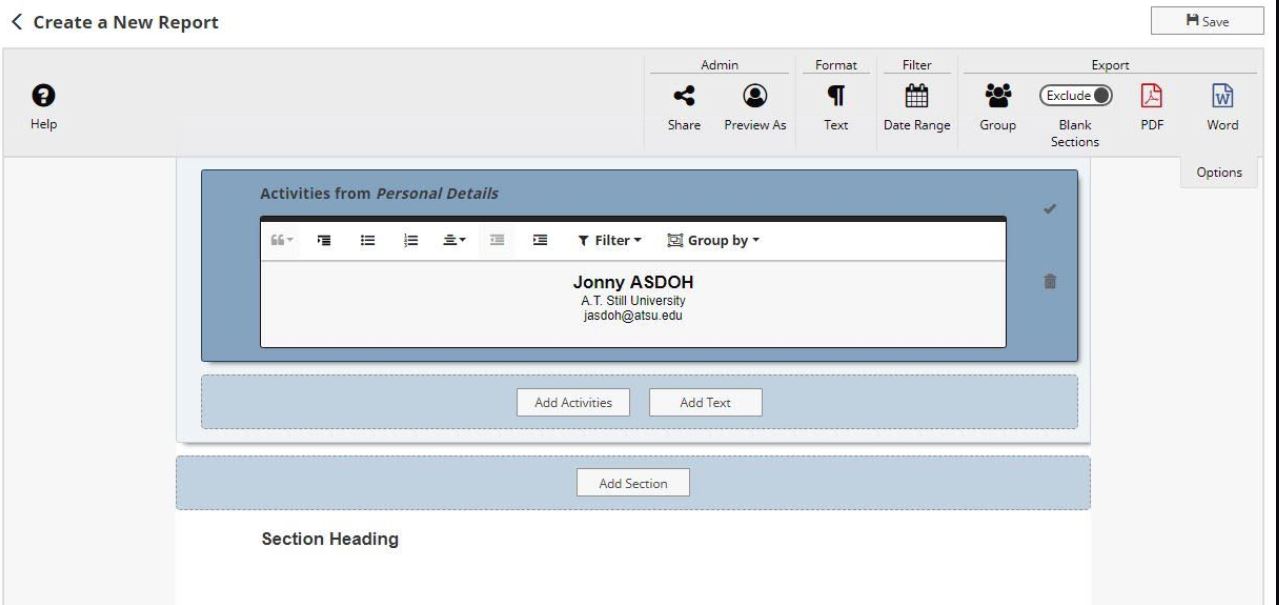
    Vita – allows for customization of your Vita, add, change delete Activity sections
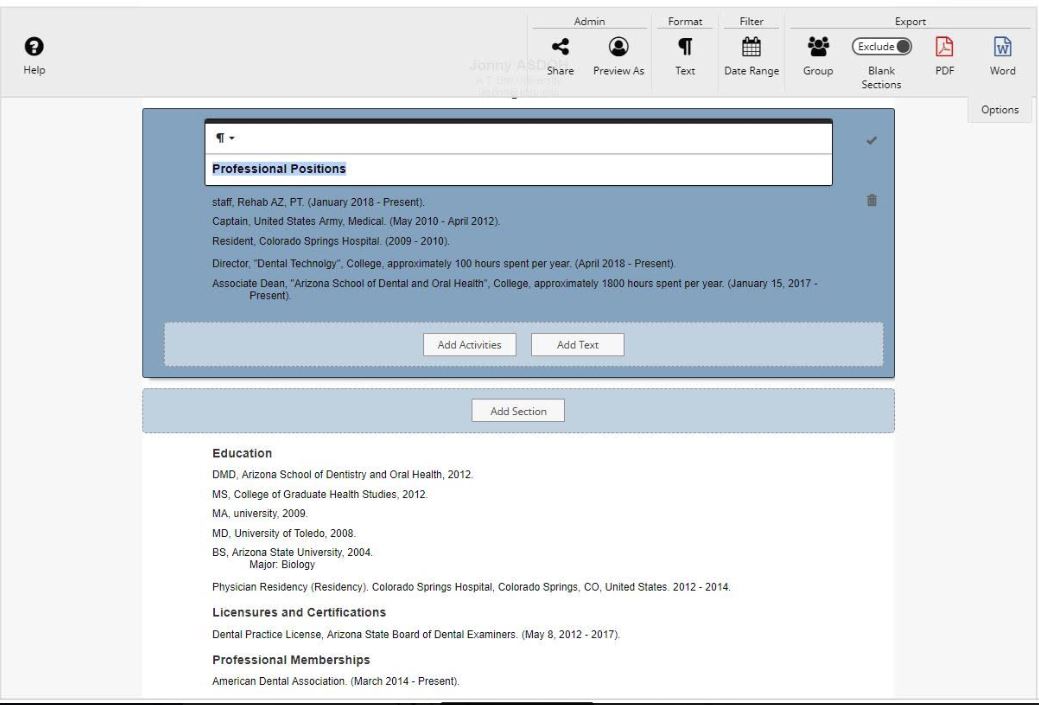
    Export Data – Allows for data extracts (.csv or xml) based on the selection parameters:

    • Date Range – specify All Dates or within a range of dates
    • Whom to include – select faculty by ATSRI membership, College, Department or Individual faculty member(s)
    • Data to include – select the specific data you want in your report Journal Article, Scheduled Teaching, Grants…
    • Grouping method – Group output by ATSRI membership, College, Department or Individual faculty member(s)
    • Keyword Search parameter – enter some keywords to further refine your data extracted
    • File Format – select the output format of Microsoft word, PDF or Web Page (.HTML)
    Categorized in